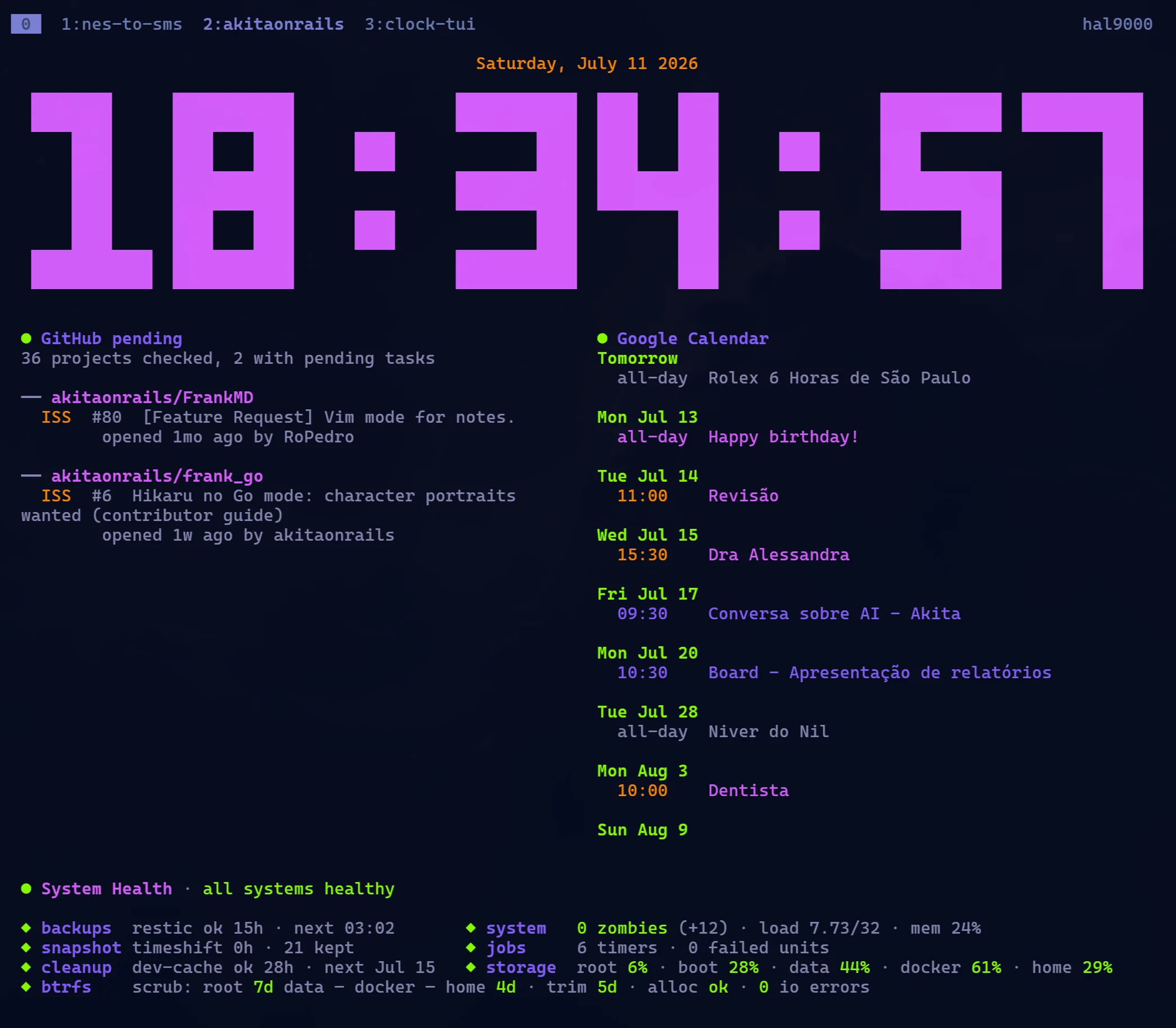
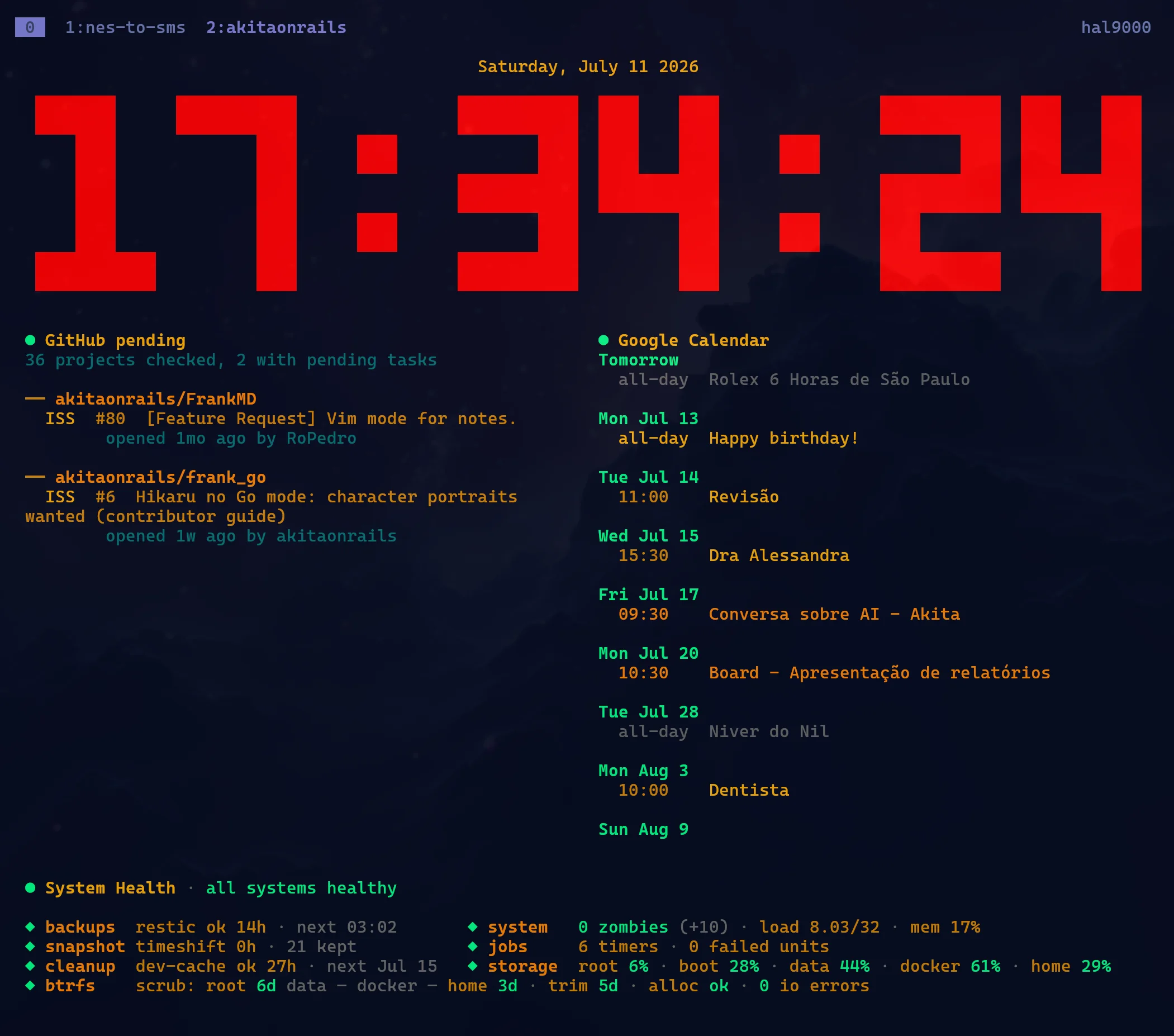
The same dashboard in two of the three built-in themes. Shift+T cycles them, and the widgets follow.
Any command becomes a widget
A widget runs a command, captures its output with the ANSI colors intact, and refreshes on its own schedule. If it prints something useful and exits, it can live under the clock.
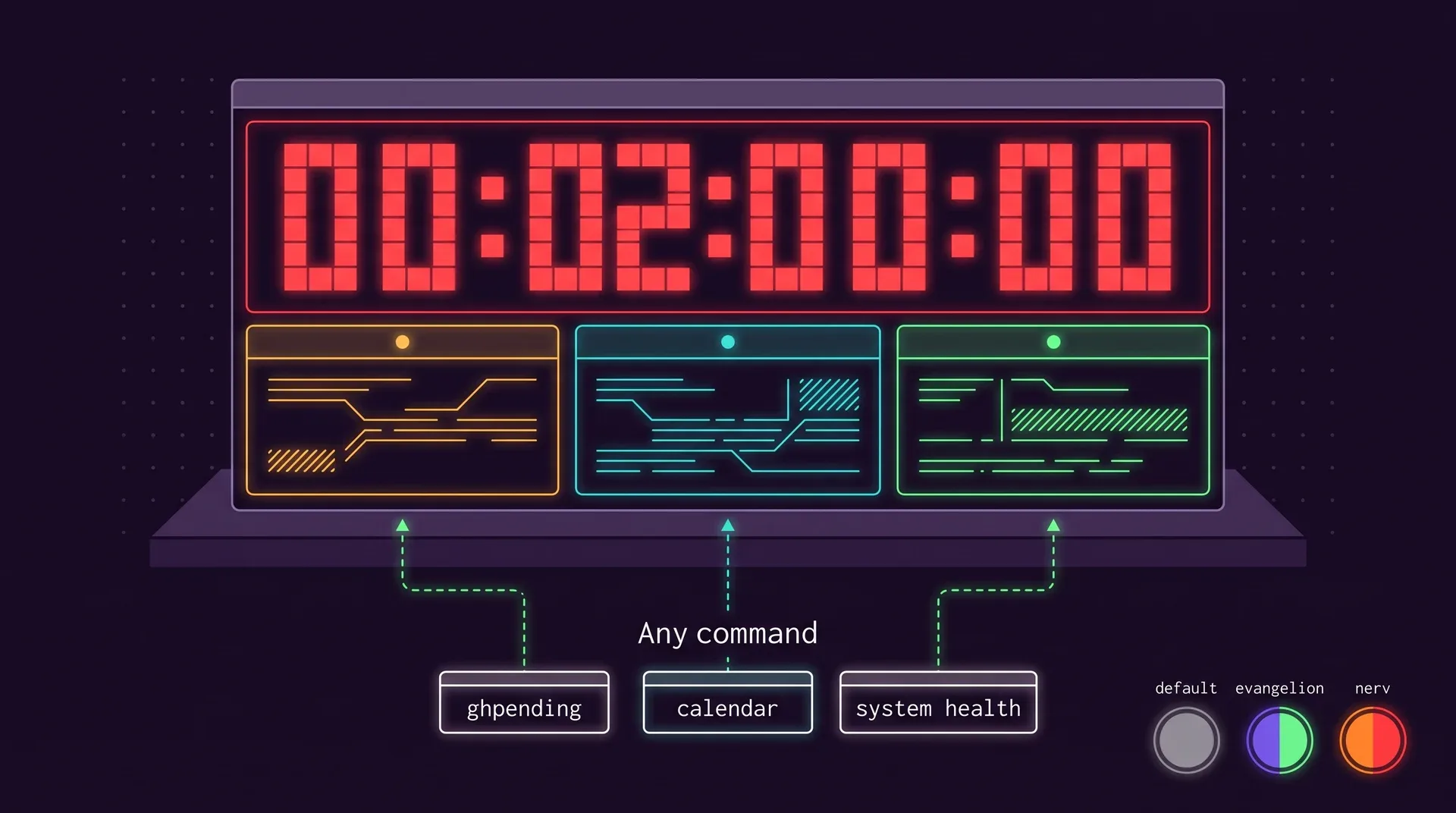
My second monitor, as configuration
This is the actual file behind the screenshot, trimmed. The system health script ships with tclock as an example widget.
[clock]widget_themes = ["nerv", "evangelion", "default"] [[clock.widgets]]title = "GitHub pending"command = "ghpending"refresh_secs = 900 [[clock.widgets]]title = "Google Calendar"command = "google-calendar-tui"refresh_secs = 3600 [[clock.widgets]]title = "" # the script draws its own headercommand = ["tclock-system-health", "--snapshots", "--timer", "backups:restic-backup:26:restic"]refresh_secs = 300position = "bottom" [[clock.widgets.popup_actions]]label = "details"args = ["--details"]What I added to the fork
Command widgets
Up to six side by side on ultra-wide terminals, or a full-width band at the bottom sized to its output.
Themes
default, evangelion and nerv. The theme name is passed to every widget as TCLOCK_WIDGET_THEME so they can match.
Groups
Put widgets in groups and swap the whole set with g. Hidden widgets do not run.
Popups
Bind a key to a detail view: the widget's command with extra arguments, shown over the clock.
Clock-only mode
z hides every widget and centers the clock. Press it again to bring them back.
Packaging
Updated dependencies, release binaries for x86_64 and aarch64, an AUR package and shell completions.
It is still a good clock
Clock, timer, stopwatch and countdown. Timers can chain durations and run a command when time is up.
tclock --theme nervtclock timer -d 25m 5m -T Focus Breaktclock countdown -t 20:00 -T Dinnertclock stopwatch --no-millisInstall
yay -S clock-tui-bincargo install --git https://github.com/akitaonrails/clock-tui --package clock-tuitclock is a fork of race604/clock-tui, which paused a long time ago. The idea is theirs; the widgets, themes and packaging are mine.
Everything here is open source
The tools, the skills and the benchmark are public repositories. Fork them and build the version that fits the way you work.